Validate a Permit
Status:  Awaiting Validation →
  Awaiting Verification
Review a requested permit and its risk assessment, then validate it so it moves on to verification — or send it back for correction.
When to use
Use this task when a permit is in Awaiting Validation and you hold the Permit Control Authority role. Validation is the first control gate after the request.
Before you start — check before launching the task
- You hold the Permit Control Authority role (typical position: Permit Control Authority).
- You did not request the same permit yourself — a person cannot approve a permit they raised (see Key Referentiel Rules).
- You can review the work scope, the hazards and controls, and any attached certificates.
Step-by-step
- Open the Permit to Work list filtered on Validation and select a permit in Awaiting Validation.
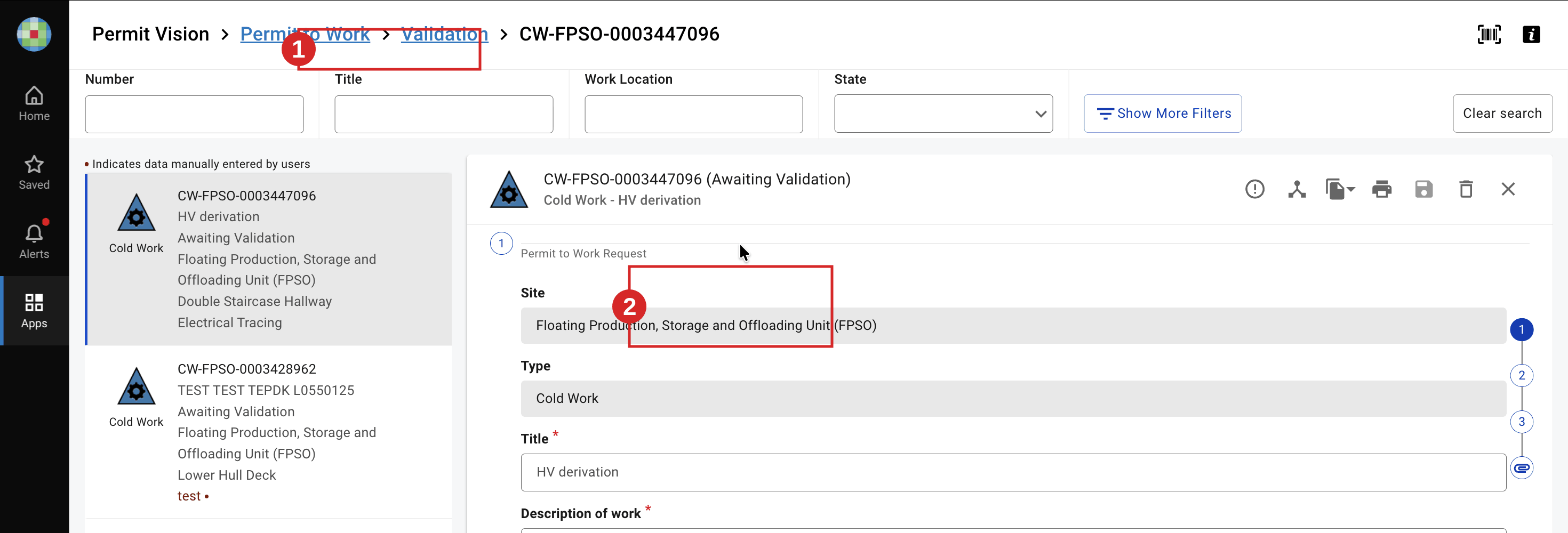
- Review the permit: general information, hazards and controls, and any attached certificates and their state.
- In Required signatures, locate Validation by Permit Control Authority.

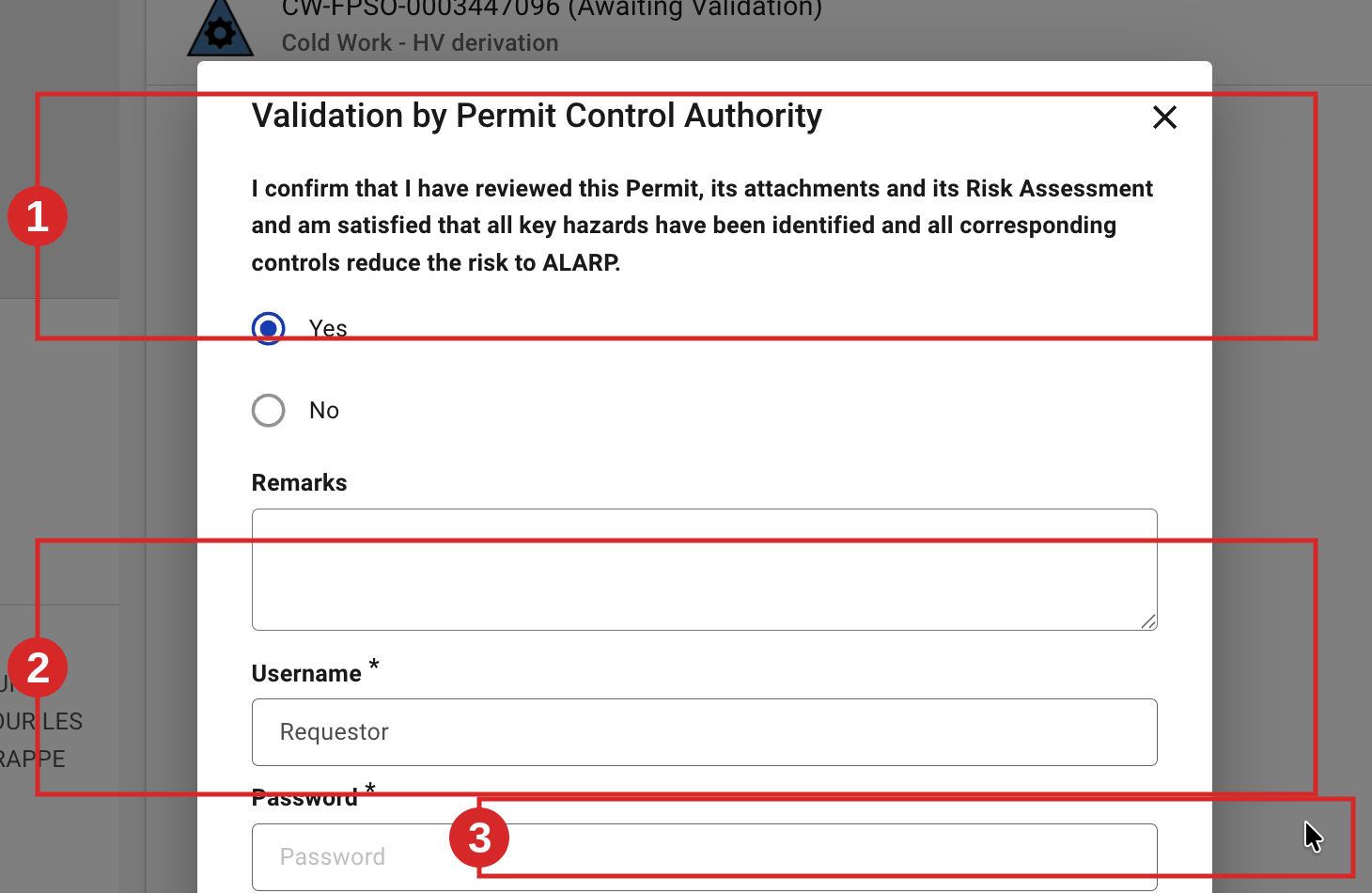
- To validate, click Sign, confirm the ALARP self-declaration (Yes), add remarks if needed, then confirm with Sign as logged in or your username and password. If the permit has SIMOPS, validation routes it to Awaiting Verification (SIMOPS) for endorsement first (see Endorse a SIMOPS Permit) before normal verification.
- To send the permit back instead, use Revert Permit to Request for edit and enter a mandatory remark explaining why; the permit returns to Request so the requester can correct it (see Revert a Permit to a Previous Step).

Expected result
The permit moves from Awaiting Validation to Awaiting Verification (or Awaiting Verification (SIMOPS) when SIMOPS applies) and appears in the verification worklist. 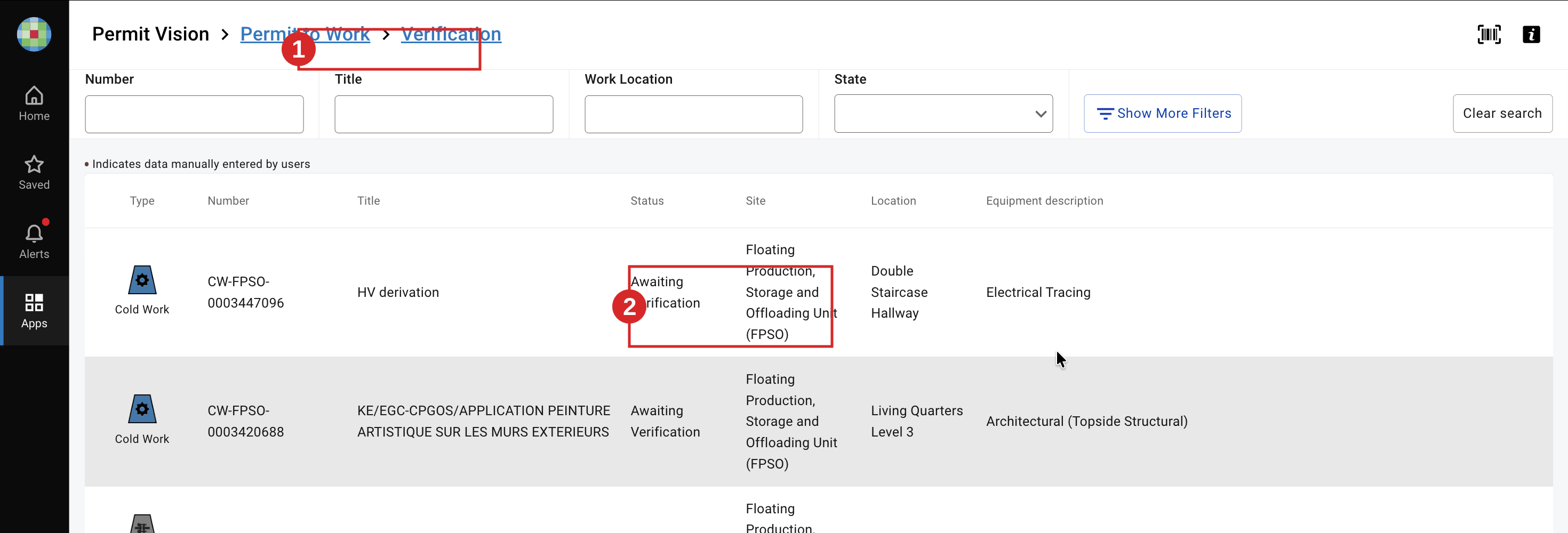 The next task is Verify a Permit (Operating Authority & HSE).
Key Referentiel rules
- Validation confirms the risk is reduced to ALARP. By signing, you confirm you have reviewed the permit, its attachments and its risk assessment, and that all key hazards are identified and controlled. (E-Permit V9 self-declaration; CR-GR-HSE-402, Req 3.2.1)
- A person cannot approve or issue a permit to work for themselves. Do not validate a permit you requested. (CR-GR-HSE-402, executive summary)
- For high-risk work, validation relies on a checked risk analysis and, where required, a joint site visit by the approving and performing authorities. (CR-GR-HSE-402, Req 3.2.2)
Tips & pitfalls
Tip — use revert, not rejection by silence. If something is missing, revert with a clear remark so the requester knows exactly what to fix.
Pitfall — validating without reading the controls. The ALARP declaration is a personal commitment. Check that every hazard has adequate controls before you sign.
Common mistakes
| Mistake | Consequence |
|---|---|
| Validating your own requested permit | Breaks separation of duties; non-compliant permit |
| Signing without checking attached certificate states | Permit progresses with an invalid ICC/INH/ORA; blocked later or unsafe |
| Reverting without a remark | Requester cannot know what to correct; time lost |